Work with results
Kaiya shows a chat preview of each table, chart or person profile. Open Results to inspect saved results and export them.
Kaiya loads the first 1,000 rows in Results and shows the total count. Export the full result to review later rows.
Results from your searches
Kaiya can search leading professional networking sites and show the results as tables, charts or person profiles. You do not need an Invenias connection for these results.
Kaiya can also create results from Invenias searches or combine both sources. Use the same controls to review either source or a combined result.
Open the Results workspace
On desktop, select Open results in the chat preview. On mobile, select Results from the app menu.
Read a result from your chat
- Select Open results in the conversation.
- Read the preview.
- Select a view to see its table, chart or profile.
Search, filter or export
- Open the app menu.
- Select Results.
- Choose your saved result.
- Use the search, filter and export controls.
- If Kaiya has not opened a result, select a saved result.
- Check the result title, summary and total number of records.
- If the result has several views, choose Table, Charts or Profiles.
Use the chat preview to check that Kaiya understood your request. Use Results to compare rows, change the display or export the list.
Find a saved result
Open Results from the navigation to find earlier work. Kaiya groups saved results by conversation and date.
On desktop, use Search results or conversations in the results list. On mobile, open Saved result to choose or search for a result.
The library search finds saved results. Use Search within results to find rows inside the result you have opened.
Search, filter and sort a table
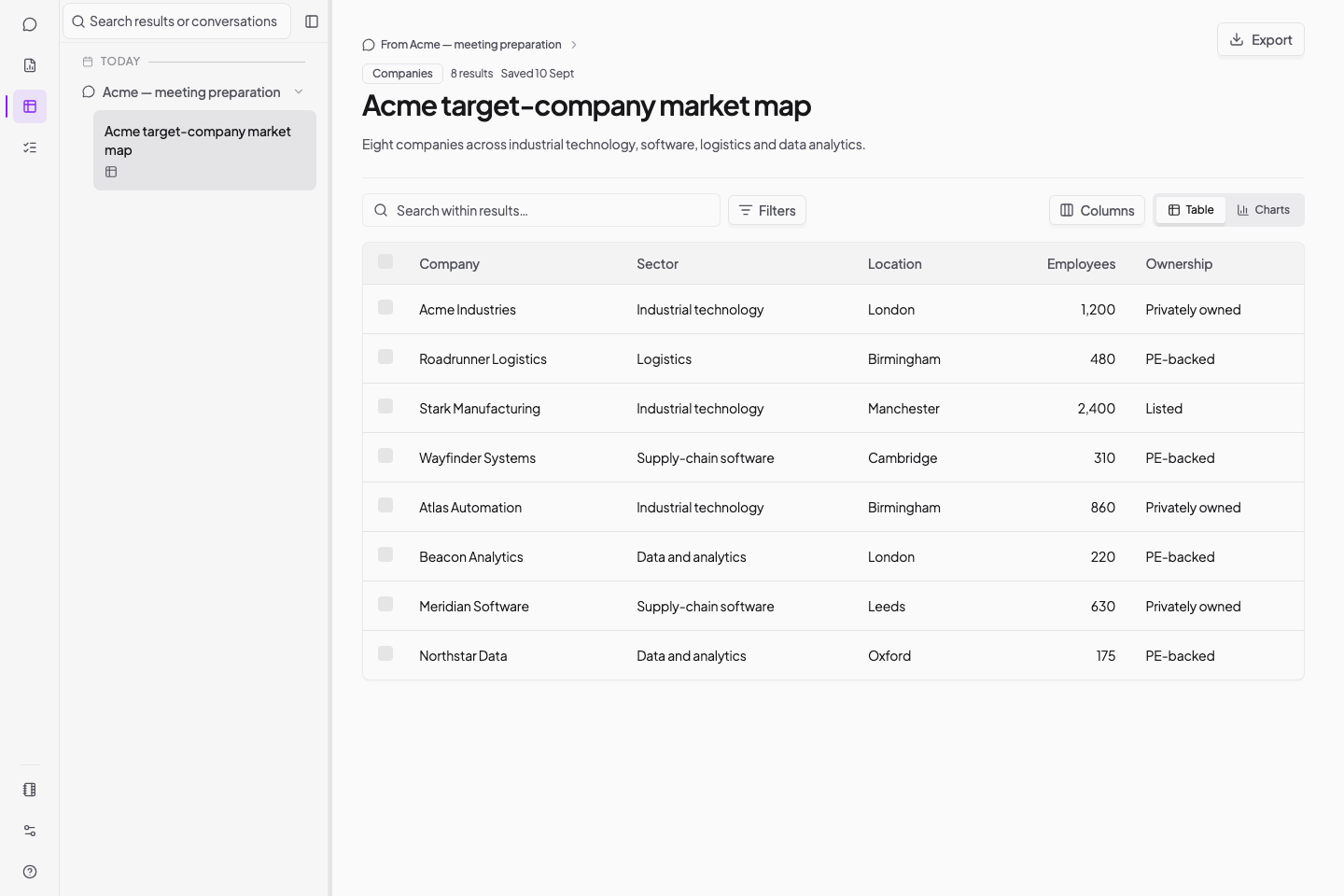
Use the controls above the result to focus on the records you need:
- Enter a word or phrase in Search within results.
- Select Filters to filter values in the returned columns.
- Select a column heading to sort by that column.
- Select the heading again to reverse the order.
- Select Columns to show or hide columns that Kaiya returned.
To add information, select the From [conversation title] link. Ask Kaiya for the missing details:
Add the sponsor, ownership dates and revenue at the time of investment for each company.
Include the sources and flag any figure you cannot verify.
You can also ask Kaiya to remove irrelevant fields, change the comparison or produce a different view.
Use charts
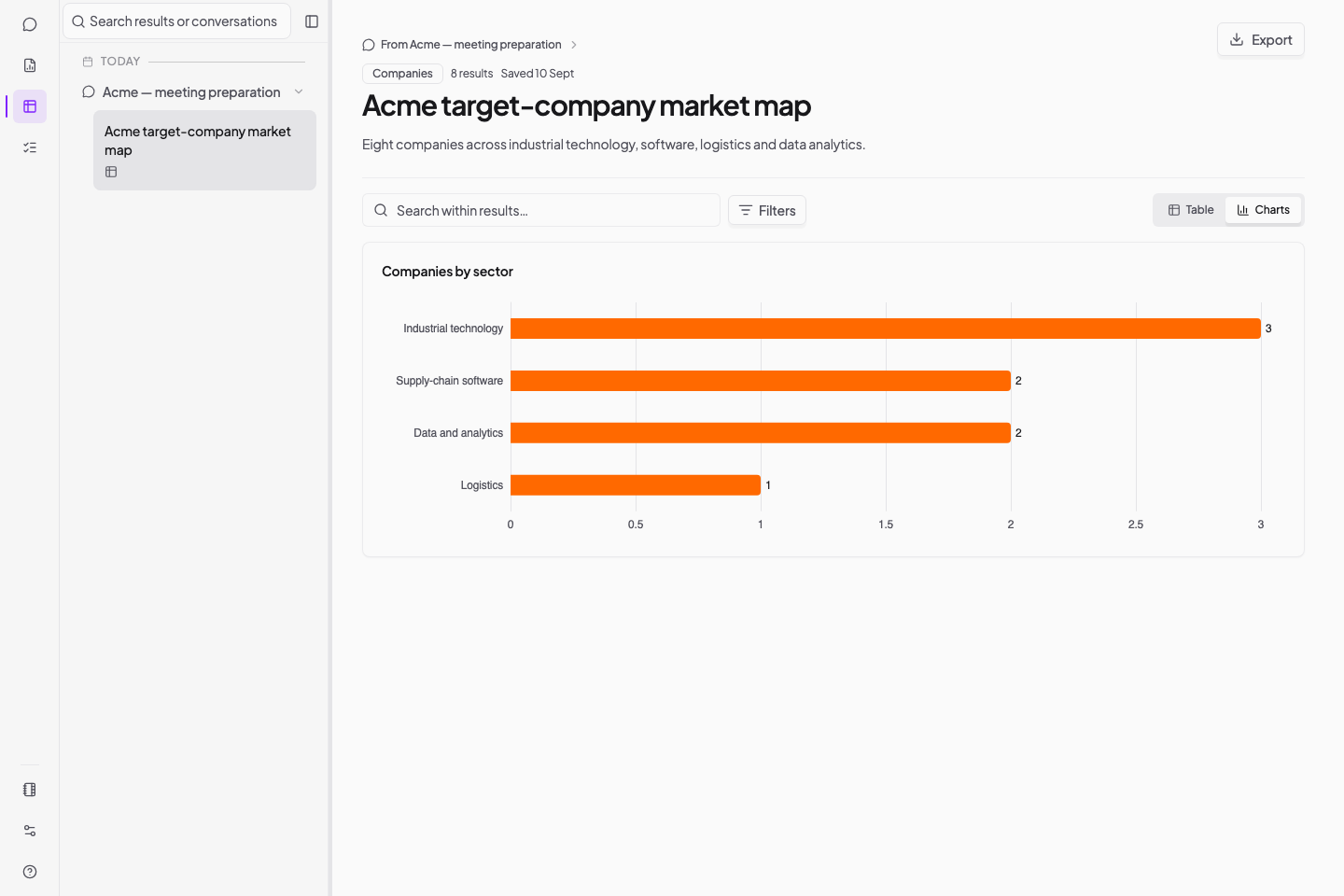
Use charts to compare groups, find gaps or spot unusual values. If the chart supports filters, select a segment to filter the other views. Clear the chart filter to see the loaded results again.
Ask Kaiya for a new chart when the result does not contain the comparison you need:
Show this candidate set by current role, location and previous PE-backed experience. Keep unknown values separate from confirmed "No" values.
Use person profiles
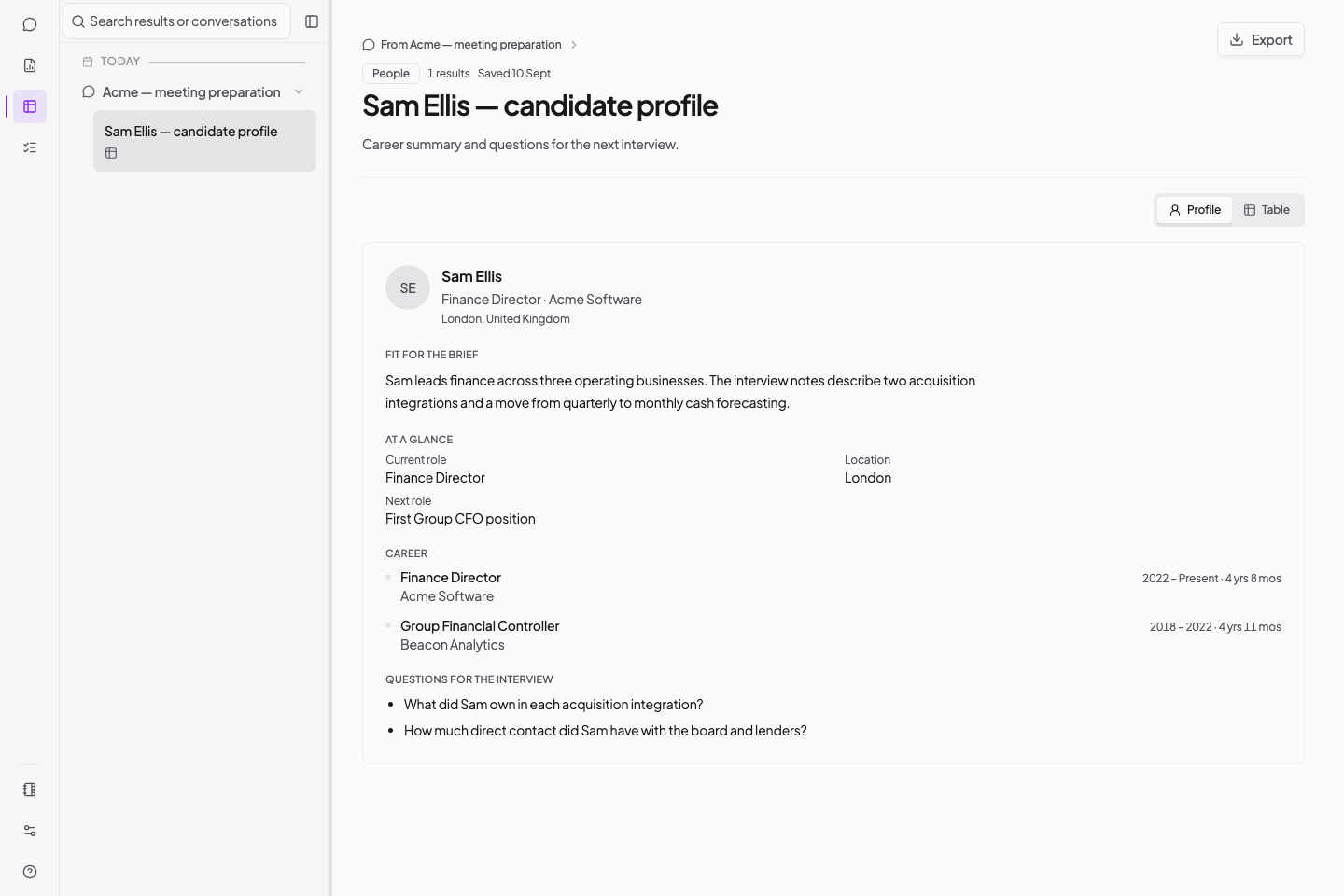
Choose Profile or Profiles to read the person profiles Kaiya prepared. Check the career details, evidence and source links.
Return to the chat if you need another field, a different profile structure or more research on a person.
This interactive view is different from a candidate profile Word document. See Create candidate reports and profiles when you need a document to share or review.
Export results
To export all records, clear the search, filters and selected rows before you follow these steps.
- Select Export.
- Choose a format:
- Excel for an Excel workbook.
- CSV for a plain data file.
- All charts as images (.zip) when you are viewing charts and need image files.
Kaiya exports the columns you have chosen to show.
- If you select rows, the file contains those selected rows.
- If you search or filter without selecting rows, Kaiya exports matching rows from the first 1,000 loaded rows.
- If you clear searches, filters and row selections, Kaiya exports the full result, including rows beyond the first 1,000.
Ask Kaiya to narrow the result in chat if you need to filter a larger list before export.
Check the file before you share it.
Refine a result with Kaiya
Select From [conversation title] above the result to return to its conversation. Tell Kaiya which candidates fit and what needs checking:
The divisional CFOs with buy-and-build experience fit best. Find more candidates
with that experience who meet the agreed brief. Exclude advisory-only profiles
and keep the off-limits list. Show ownership dates and the candidate's employment
dates so I can check the overlap.
Tell Kaiya which results fit and why. Kaiya will choose the next search.
Large search result sets
Kaiya can combine searches of professional networking sites into a list of more than 100 people or companies. The number depends on the matches Kaiya finds. If the list is too short, ask Kaiya to investigate related roles or companies that could meet the brief.